Getting started
From your first preview to a working project
Copy Prompt gives an AI coding tool the instructions to build the asset.
Download code gives you a ready project to run and edit. This option requires Lab Premium.
1. Find an asset
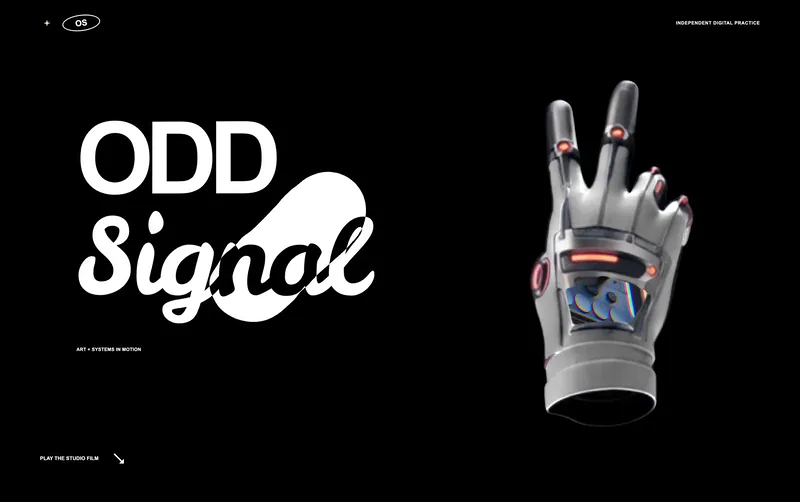
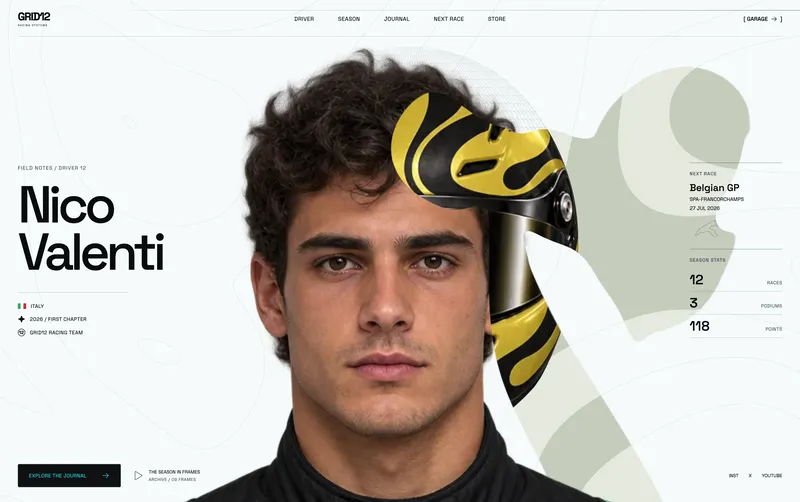
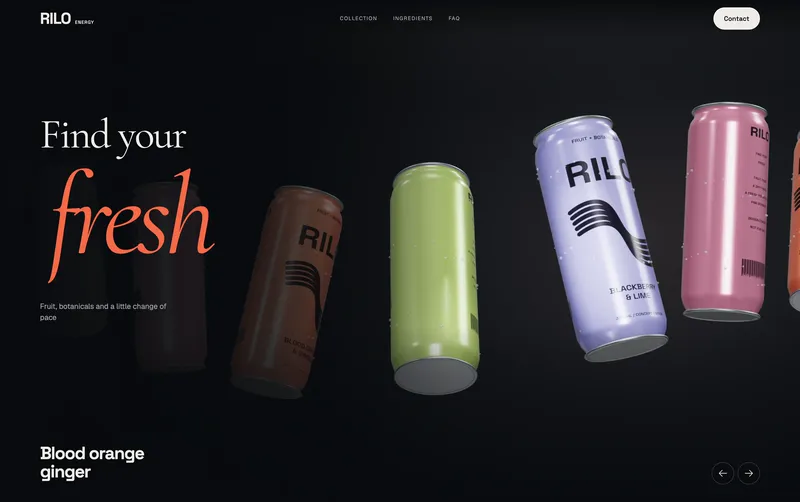
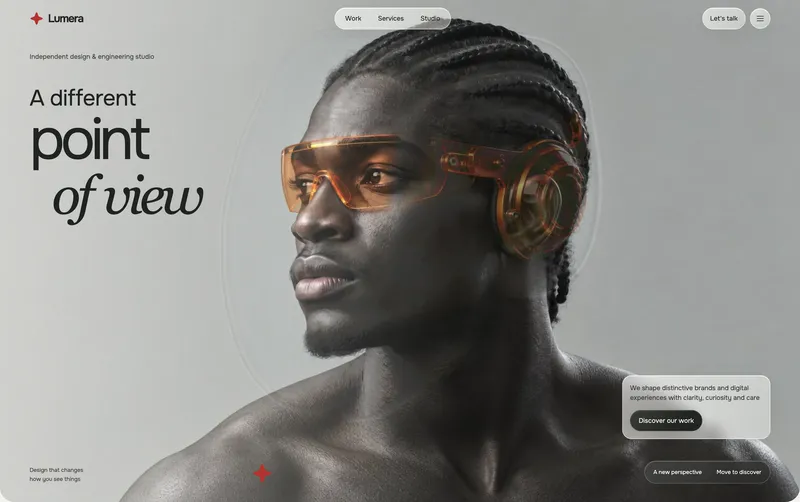
Open Library and select an asset. Watch its video preview to see the layout and motion. Use Pause or Restart to inspect an effect.
- Websites contain a full website layout.
- Sections contain one page section.
- 3D scenes, Gradients and Backgrounds contain one visual effect.
2. Get the prompt
Create a free account or sign in. Open the confirmation email and confirm your address, then select Copy Prompt. Wait for the Prompt copied message before pasting. Locked prompts lead to Pricing so you can choose the required plan.
Check plan access and copy limits3. Build in your AI coding tool
Paste the entire prompt into a tool that can create and edit a project. The prompt includes the design, motion, key code and any supplied media links. For an existing app, also tell the tool which page or component to update.
Follow the prompt workflow4. Check the result
Open the app your tool built. Compare its composition and motion with the asset preview, then check a phone-sized layout. Ask for one specific correction at a time before changing the branding.